


 Click it and Unblock the Notifications
Become an expert in Gmail – Part 2

Gmail is one of most common mail utility being used around the world! Google is trying to find solutions to several requests by users regarding the challenges they face in Gmail. One of them is the inability to access Gmail when we are disconnected from internet. Google has finally announced an HTML-5 based solution for this problem.

The latest news that is making headlines is that Google is rolling out offline access to the most popular applications like Calendar, Docs as well as Gmail. The fact is that offline access to Calendar as well as Docs are not available as of now, where as Gmail offline access is available by enabling it by means of using Google Chrome.
The following steps have to be followed in order to make the Gmail work offline.
Go to the Chrome Web Store
Install the new offline Gmail Application
Gmail Offline Beta
Gmail Offline Beta is the Gmail App that has been built in order to enhance the users with offline access. With the help of this application, users are provided with offline access as well as the e-mails also can be read and responded. Searching and Archiving can also be done eventually without the presence of network access.
Gmail Offline Application is designed in such a way that it will automatically synchronize messages as well as the corresponding actions are queued anytime the Google Chrome is running.
Streamlined User Interface: It is considered to be one of Gmail’s popular tablet interfaces has the capability to enhance the users with its faster response time.

Gmail Offline Beta comes with multi-language support functionality.
Once the installation of Gmail Offline Beta is completed, the following steps have to be followed that includes;
Users will have to open a new tab in the Google Chrome
Users will be able to identify a Gmail Offline Icon present in the pane
Click on the Gmail Offline Icon
The Gmail Offline will start loading
Note
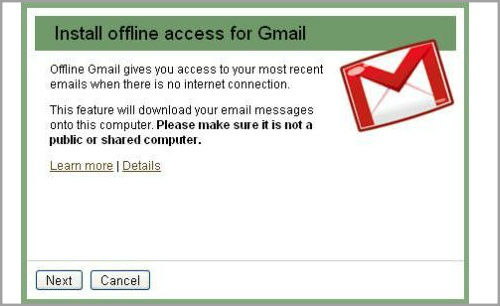
Users will be prompted whether to allow the offline mail storage
“Users should not allow offline mail storage on a public computer”
If the users allow offline mail storage, the Offline Gmail will start to create back up for the inbox

In order to remove the offline inbox:
Users will have to navigate towards Chrome Address Bar
And then type chrome: //settings/cookies
Click Enter
Search mail.google.com
Click ‘X’ in order to delete the offline inbox
Note that Uninstallation of Google Chrome Application will not wipe off the offline data.
This is how the users can work on Gmail Offline by means of Gmail Offline Beta Application. We have already discussed about Become an expert in Gmail - Part 1 and Become an expert in Gmail - part 3.
-
 54,999
 -
 99,999
 -
 1,44,900
 -
 89,998
 -
 46,500
 -
 57,998
 -
 53,989
 -
 1,59,999
 -
 1,29,999
 -
 99,999
-
 70,499
 -
 1,56,900
 -
 1,30,990
 -
 17,084
 -
 16,999
 -
 30,999
 -
 9,999
9,999 -
 79,900
 -
 8,999
8,999 -
 79,999
-
 20,999
 -
 37,999
 -
 25,999
 -
 31,999
 -
 24,999
 -
 10,999
 -
 15,999
 -
 45,999
 -
 19,499
 -
 1,61,999
-1763362932432.svg)

 Continue with Google

