Click it and Unblock the Notifications
NVIDIA PAIR Explained: What Is Personal AI Router, How It Works, Features and Requirements

NVIDIA is expanding the possibilities of local AI with Personal AI Router (PAIR), a beta software solution that allows compatible PCs, Macs and DGX Spark systems to work together as a personal AI inference cluster.
The idea is simple: instead of relying on one computer for every AI workload, PAIR can route inference requests across available local machines while keeping prompts, files and agent context on the user's network.

What is NVIDIA PAIR?
NVIDIA PAIR connects compatible Windows, Linux and macOS systems, along with NVIDIA DGX Spark systems, over a local network. It acts as a single local endpoint through which supported AI applications and agents can send inference requests.
Importantly, PAIR does not combine multiple GPUs into one virtual GPU. The individual computers remain separate systems and can handle workloads in parallel. NVIDIA Personal AI Router
How does NVIDIA PAIR work?
PAIR discovers compatible machines on the network and allows users to add them to a personal AI cluster. Once configured, it can route AI inference requests across available nodes, allowing busy workflows to make use of idle computing resources. NVIDIA Personal AI Router
For example, a user could have an RTX-powered Windows PC, a supported Mac and a DGX Spark on the same network. PAIR can make their available computing resources accessible to supported AI applications without requiring a traditional server cluster.
Which AI tools does it support?
At launch, NVIDIA PAIR supports Ollama and LM Studio. It can run alongside these local inference backends across Windows, Linux and macOS, providing applications with a consistent endpoint for accessing available local compute. NVIDIA Personal AI Router
What are the system requirements?
The supplied NVIDIA material lists the following validated configurations:
- Operating systems: Windows 11, DGX OS, Ubuntu 14.04 and macOS Tahoe
- GPU: GeForce RTX 20 Series and newer, DGX Spark/GB10, or Mac M4 and newer
- RAM: 8GB or higher
- Storage: 20GB or higher recommended
- Internet: Not required for operation, but required for model downloads
NVIDIA notes that requirements can include specific OS versions, GPU memory, processors, storage and local-network connectivity, so users should check the current PAIR requirements as the beta evolves. NVIDIA Personal AI Router
How do you set up NVIDIA PAIR?
The setup process involves three basic steps:
- Download and install NVIDIA PAIR on supported systems.
- Add compatible devices connected to the same local network to the cluster.
- Run supported AI applications and agents through PAIR's local endpoint. NVIDIA Personal AI Router
NVIDIA says PAIR does not require special cables, racks or complex cluster infrastructure. NVIDIA Personal AI Router
Does NVIDIA PAIR keep AI data private?
Privacy is one of PAIR's key selling points. NVIDIA says prompts, files and agent context remain on the user's local network rather than being sent to a cloud inference service. NVIDIA Personal AI Router
However, an internet connection is still required when downloading models, according to the supplied requirements.
Why does NVIDIA PAIR matter?
PAIR is aimed at users who already have multiple capable computers and want to make better use of their hardware for local AI. Rather than leaving one system's computing resources idle, PAIR provides a way for supported AI workloads to access available compute across the local network.
In short, NVIDIA PAIR turns a collection of compatible personal computers into a local AI inference cluster without merging them into a single virtual GPU. Its combination of local processing, multi-device routing and support for tools such as Ollama and LM Studio makes it particularly relevant to people building private AI workflows at home.
-
 54,999
 -
 99,999
 -
 1,44,900
 -
 89,998
 -
 46,500
 -
 57,998
 -
 53,989
 -
 1,59,999
 -
 1,29,999
 -
 99,999
-
 70,499
 -
 1,56,900
 -
 1,30,990
 -
 17,084
 -
 16,999
 -
 30,999
 -
 9,999
9,999 -
 79,900
 -
 8,999
8,999 -
 79,999
-
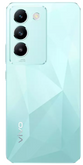 20,999
 -
 37,999
 -
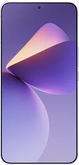 25,999
 -
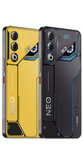 31,999
 -
 24,999
 -
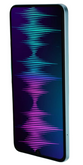 10,999
 -
 15,999
 -
 45,999
 -
 19,499
 -
 1,61,999
-1763362932432.svg)

 Continue with Google