Click it and Unblock the Notifications
ASUS Zenbook DUO 2026 Review: This Ruined Single-Screen Laptops for Me (And in a Good Way)

My first real experience with a dual-screen laptop was the 2024 ASUS Zenbook DUO. I went in skeptical. Two screens felt like a gimmick dressed up as innovation.
However, just in a few hours, that skepticism was gone. I stopped thinking of it as a review unit and started thinking of it as my laptop. That's rare.
Since that first DUO, dual screen has been my favorite form factor, full stop. It's the closest thing to a real multi-monitor setup that still fits in a bag.
Now there's a 2026 version, the UX8407AA, with a redesigned hinge and a sturdier kickstand. I'll say this upfront instead of burying it. This is the best laptop I've used, period.

ASUS Zenbook DUO 2026 Review: Two-Minute Review
The ASUS Zenbook DUO 2026 is the laptop that made me stop wanting a single screen ever again. Two matching 3K OLED panels at 144Hz, a redesigned hinge that feels genuinely sturdy across four different modes, and a new Panther Lake chip that handles heavy multitasking without breaking a sweat.
The detachable keyboard has been completely reliable, the ASUS Pen 3.0 gets real use across both screens, and battery life comfortably covers a full workday. ASUS backs it all with a deep software layer that treats the second screen as a real tool, not an afterthought.
At Rs 2,99,990, it's not cheap. But if you're already running a multi-monitor setup, this laptop replaces it entirely, and makes it portable.
ASUS Zenbook DUO 2026 Review: Display
Let's talk about the screens first, because this is genuinely the reason people buy this laptop.
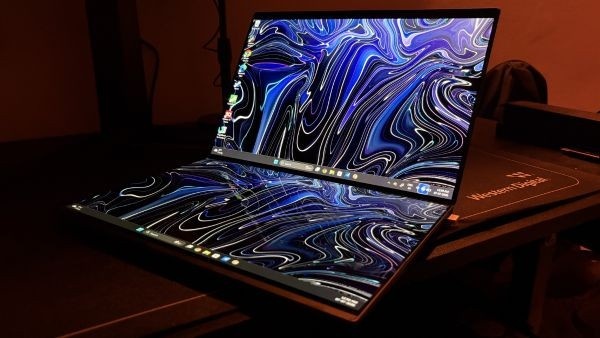
You get two 14-inch OLED panels, both 3K at 2880x1800, both running at 144Hz. Neither one is the "secondary" screen tacked on as an afterthought. They're identical in spec, and they look identical in person too.
What ASUS Claims on Paper
ASUS claims 100% DCI-P3 coverage, PANTONE validation, and up to 1000 nits of peak brightness in HDR mode across both panels. Anti-reflection coating is on both screens as well.
ASUS also claims the panels emit 70% less blue light than a standard LCD, backed by TÜV Rheinland certification. There's an OLED Care feature that triggers a screensaver after 30 minutes of idle time to reduce burn-in risk. How well that holds up is something only months of daily use would actually tell you.
On durability, ASUS claims the top panel handles 5kg of direct pressure and the bottom one takes 15kg without damage.
What It's Actually Like to Use
Here's where I can speak from real experience instead of a spec sheet.
This is one of the best OLED panels I've used on a laptop, full stop. Blacks are genuinely inky. Not "dark gray pretending to be black," actual black. Colors pop without looking oversaturated or cartoonish.
Even in SDR content, it looks fantastic. You don't need HDR toggled on to notice the difference. Watching Netflix or YouTube on this thing feels like a proper home theater moment, not just "fine for a laptop screen."
The 144Hz refresh rate makes everything feel smoother day to day, scrolling, window animations, even just moving the cursor around. It's a small thing until you go back to a 60Hz screen and immediately notice the difference.
For photo editing and video work, this display earns its keep. Color accuracy feels trustworthy enough that I'm not second-guessing what I'm seeing versus what'll show up elsewhere. If you're doing any kind of color grading or photo retouching, having two screens this good next to each other is a real advantage, not just a novelty.
If ASUS built one thing on this laptop that fully lives up to the hype, it's the display. Everything else on this machine is good. This part is exceptional.
ASUS Zenbook DUO 2026 Review: Design and Build
The chassis is built from something ASUS calls Ceraluminum, a ceramic-infused metal the company says resists scratches better than regular aluminum while staying light. ASUS says it took four years of fine-tuning the color, texture, and hardness to get this material right.
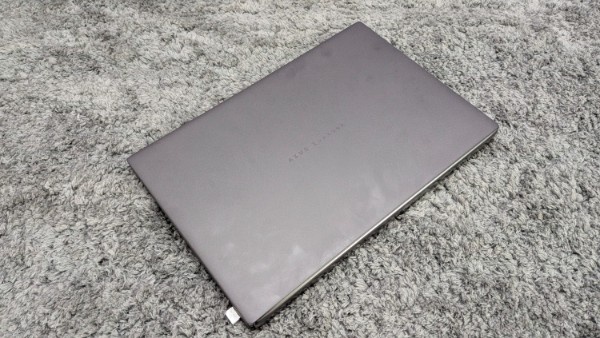
In hand, the finish is soft to the touch, almost matte. The minimalist Zenbook branding on the lid keeps things clean instead of loud.
The downside is fingerprints. This finish picks them up fast, and they're visible. If you like your laptop looking spotless, you'll be wiping it down more than usual.
It's thin and light for what it packs inside. Carrying it around all day doesn't feel like a chore. ASUS puts the weight at approximately 1.35kg without the keyboard and 1.65kg with it attached, with dimensions of roughly 310 x 209mm and a thickness ranging from 14.56mm to 23.34mm depending on configuration. That lines up with how it feels day to day, light enough that you don't think twice about tossing it in a bag.
The Hinge
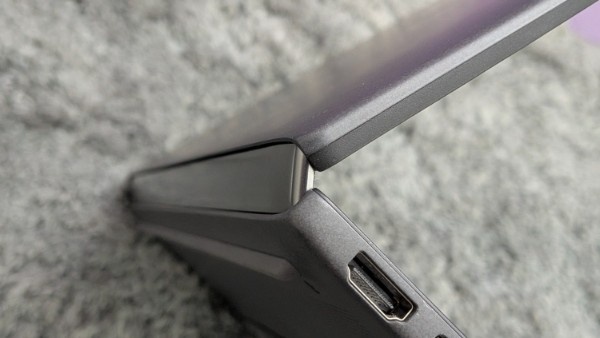
A dual-screen laptop lives or dies by its hinge. This is the part that either sells the whole concept or breaks it.
In hand, it's sturdy. No wobble, no flex, no give when switching between modes.
ASUS calls this the hideaway hinge and says it cuts the gap between the two screens by 70 percent, down from 25.31mm to 7.66mm compared to the previous generation. ASUS also says this redesign shrinks the overall chassis by 5 percent. The smaller gap is noticeable in person. Looking at both screens together, it genuinely feels like one continuous surface instead of two separate panels bolted side by side.
ASUS rates the hinge for over 40,000 open-close cycles and says it can bear a 15kg load.
The Kickstand
Same result here. It's rock solid across different angles and doesn't feel like a bolted-on afterthought.
ASUS lists a range of 40 to 70 degrees in dual-screen mode, and a fixed 95 degrees in desktop mode. The company says the kickstand has been through the same 40,000-cycle durability testing as the hinge.
The Different Modes, And When You'd Actually Use Them
This is where the hinge and kickstand earn their keep. It's not just about being able to fold the laptop into different shapes; it's about each shape actually solving a specific problem.
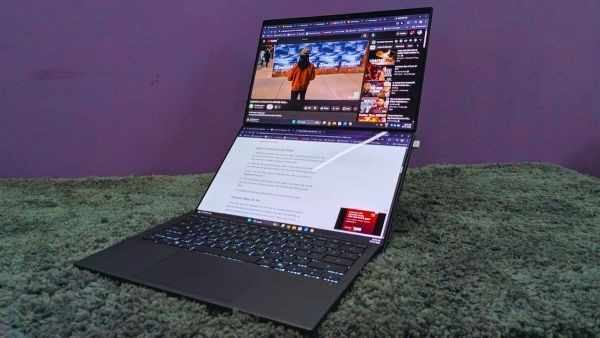
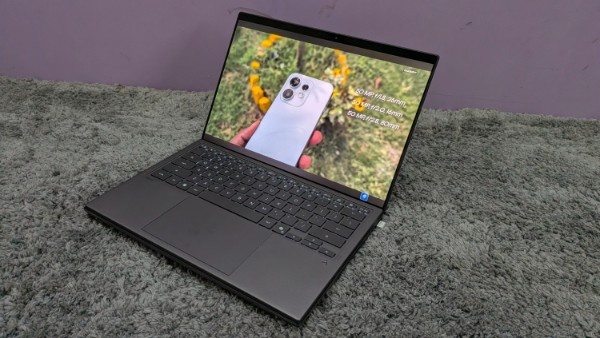
Laptop mode. Snap the keyboard onto the lower screen, and it behaves like a regular 14-inch laptop, tall 16:10 aspect ratio and all. This is your default mode for anything you'd normally do on a single-screen laptop: emails, browsing, quick edits, the stuff that doesn't need two displays.
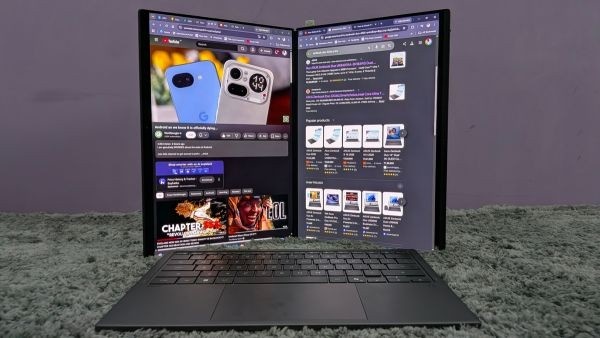
Desktop mode. Prop it up on the kickstand and run your main app on one screen while the other holds reference material, documentation, or research. This is the mode I reach for most when I'm writing, source material on one side, the draft on the other, no more alt-tabbing every few minutes.
Sharing mode. Lay the laptop flat, and both screens face outward, so someone across the table can actually see what you're showing them. ASUS says the hinge supports a full 180-degree lay-flat position to make this possible. This one's genuinely useful in meetings or pitches where you'd otherwise be turning your laptop around awkwardly.
Book mode. This is the one I use a lot that doesn't get talked about enough. Prop the laptop up horizontally, like an open book lying flat on a table, with the keyboard sitting in the middle between the two screens. It's a different feel from desktop mode since you're not stacking one screen above the other, you're spreading them out side by side at a relaxed angle. Works well for reading side by side with notes, or just when you want a wider, more casual multitasking setup instead of a tall vertical stack.
ASUS Zenbook DUO 2026 Review: CPU Performance
The Zenbook DUO runs on the Intel Core Ultra 7 355, part of Intel's new Panther Lake generation, officially called Core Ultra Series 3. This launched at CES 2026 as the successor to Lunar Lake, and it's Intel's first mobile chip built on their in-house 18A process node instead of relying on TSMC for manufacturing.
The 355 is an 8 core chip, 4 Cougar Cove performance cores and 4 Darkmont low power efficiency cores, with no hyperthreading. That's a deliberate choice on Intel's part. Panther Lake chips run the same number of threads as they have cores, unlike older Intel generations. Clock speeds go up to 4.7 GHz on the performance cores. Intel's own spec sheet lists a base power of 25W and a maximum turbo power of 55W, though ASUS configures the Zenbook DUO to run at up to 45W of sustained performance.
The NPU is rated at 49 TOPS for on-device AI tasks. Worth flagging here, Panther Lake doesn't actually push the NPU forward much generation over generation. Intel went with a smaller, more efficient NPU that lands at roughly the same performance level as before, rather than chasing a bigger number.
The review unit came with 32GB of RAM, and that's currently the only memory option available on this configuration, there's no higher tier to choose from.
In daily use, it flies through the workload. More than 30 Chrome tabs open at once, and it doesn't choke. That said, 64GB would've been nice to have for peace of mind, especially if you tend to run heavier multitasking sessions on top of that.
On the benchmark side, PCMark10 came in at 6164 unplugged and 7577 plugged in. That gap between battery and wall power is worth keeping in mind, since it means performance isn't identical when you're untethered.
ASUS's own benchmark sheet lists a Cinebench R24 score of 631 multi-core and 118 single-core, along with a PCMark 10 Extended main score of 3740.
ASUS Zenbook DUO 2026 Review: GPU Performance
There's no discrete GPU here. Graphics come entirely from the integrated Arc silicon built into the Core Ultra 7 355.
PugetBench scored 26212 unplugged and 32373 plugged in, another case where being connected to power makes a real difference.
For gaming, Forza Horizon 6 was the test. At native resolution with medium settings, the average frame rate landed at 12 FPS. Dropping to 1920x1200 with low settings brought that up to 26 FPS.
Here's the thing, though. Even at low settings, the game still looked good, and the driving felt smooth with hardly any jitters. That was a genuinely pleasant surprise given the expectations going in.
Let's be clear, though, this isn't a gaming laptop, and it's not pretending to be one. If you want a dual-screen setup that can also throw real frame rates at AAA titles, ASUS has the Zephyrus Duo waiting for you, at a cool Rs 6,99,900. For casual gaming with a bit of settings tweaking, the Zenbook DUO gets you a perfectly enjoyable session.
ASUS's own 3DMark numbers list a Wild Life score of 21157 and Wild Life Extreme at 5359, with Night Raid posting a graphics score of 36261.
/img/2026/07/pxl-20260706-1914211251-1783978266.jpg)
ASUS Zenbook DUO 2026 Review: Keyboard and Trackpad
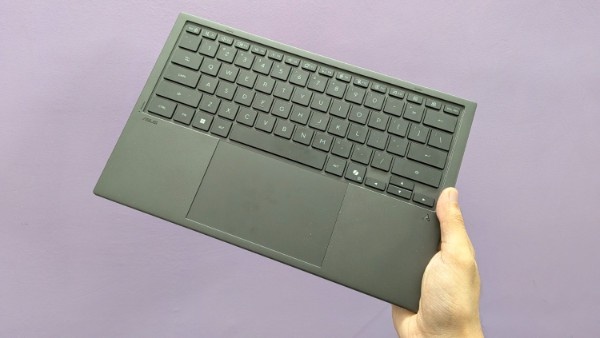
ASUS calls this the next-generation detachable keyboard, and it shows. This is a proper redesign, not a minor refresh.
It connects three ways: Bluetooth, Pogo Pin, or USB-C. Most detachables stop at two options. ASUS also claims a 200 percent jump in battery life over the previous keyboard, rating it at 52 hours without the backlight and around 11.6 hours with it on.
In daily use, it's been reliable. Snap it on, pull it off, no dropouts, no random disconnects. That's not always a given with Bluetooth peripherals, so it's worth calling out when it just works.
Key travel could be deeper. ASUS lists 1.7mm of travel with a 19.5mm key pitch, and while typing feels solid, a bit more depth would make long sessions even more comfortable. Still, this is a genuinely good Bluetooth keyboard, not just a good detachable keyboard.
The trackpad is roomy too. It's ASUS's ErgoSense unit with a hydrophobic coating for a smoother glide, and it handles gestures and everyday navigation without any hiccups. Backlighting is included as well, which is a small thing but a welcome one on a keyboard this thin.
ASUS also says the keyboard has been through a pressure test of 1 million keystroke cycles, with the magnetic pogo pins rated for 1 million retraction cycles and 20,000 side pressure cycles.
Between the connection flexibility, the reliability, and the trackpad size, this keyboard doesn't feel like an accessory bolted on to make the dual-screen concept work. It genuinely holds its own.
The Stylus
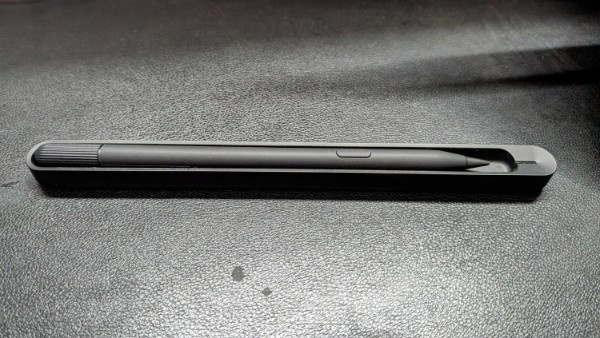
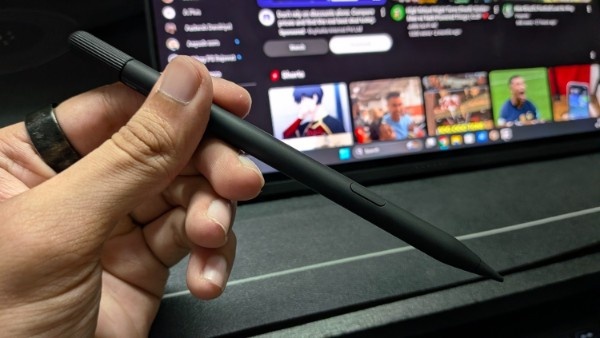
The Zenbook DUO comes with the ASUS Pen 3.0 and a charging dock. The dock plugs into a USB-C cable, so it needs its own power source; it doesn't charge wirelessly.
The pen itself is genuinely useful. I reach for it a lot when both screens are active; it's just faster than switching to the trackpad for quick edits or annotations.
There is a place to store the pen, the charging dock. But it's a separate accessory, not something built into the laptop. I'd have preferred the pen to attach directly to the laptop itself, similar to how some other laptops let you dock a stylus magnetically on the chassis. That would've made it feel like part of the machine instead of one more thing to carry and keep track of.
ASUS Zenbook DUO 2026 Review: Battery Life
Let's get straight to what actually happened during testing.
Running both screens at 120Hz, the battery went from 99% down to 76% in about 2 hours and 43 minutes. Do the math on that rate, and you're looking at somewhere around 11 to 12 hours on a full charge. That's an estimate based on the drop rate, not a lab-tested runtime number, so take it as a ballpark.
And honestly, for two OLED screens running at their fastest refresh rate, that's pretty solid. Real days rarely look like a clean, consistent drain, though. You open more apps, brightness changes, something runs in the background. So don't expect to hit exactly 11 to 12 hours every single time.
Switch over to single display mode, and you'll stretch things out even further. The 99Wh battery has a lot more to give when it's not lighting up two panels at once. This laptop can genuinely get you through a full workday, dual screen or not.
Charging is where it gets interesting. The test here was done with the laptop hooked up to an external monitor, running as a single-screen setup, not the internal displays. From 31% to 72% took just 33 minutes. That's a quick recovery, and the bundled 100W charger is doing a lot of the heavy lifting there.
ASUS Zenbook DUO 2026 Review: Ports and Connectivity
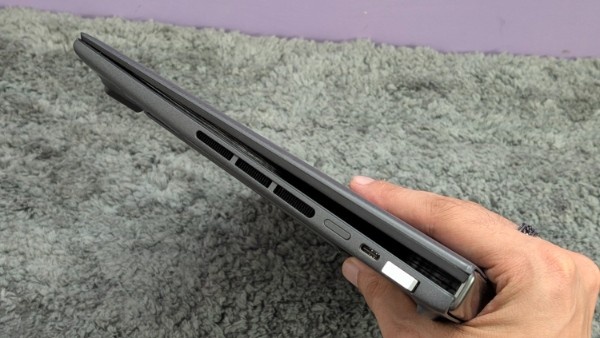
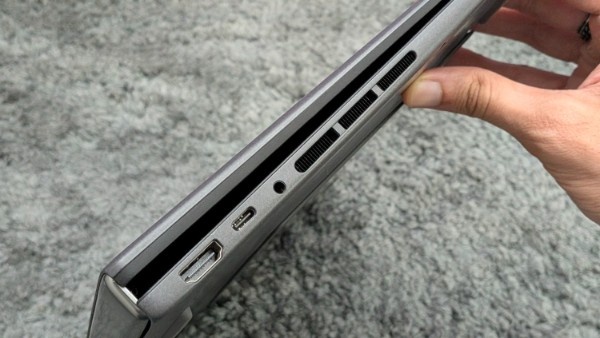
You get two Thunderbolt 4 ports, each rated for up to 40Gbps of data, along with DisplayPort and Power Delivery support. That's a solid pair, letting you charge and connect an external display through the same style of port.
Alongside that, there's one USB 3.2 Gen 2 Type-A port, one full-size HDMI 2.1 port, and a 3.5mm audio jack. Wireless comes from Wi-Fi 7 and Bluetooth 5.4.
Here's the annoying part. There's only a single USB-A port. If you're running a wireless mouse off a USB dongle, that port's gone immediately, and you're out of luck for anything else that still needs USB-A. Plenty of people juggle more than one USB-A accessory at a time, so this one's going to bug some buyers more than others.
Outside of that, the spread covers the basics well. Two Thunderbolt ports plus full-size HDMI means you can drive an external monitor and charge at the same time, no dock needed for a simple setup.
ASUS Zenbook DUO 2026 Review: Software / Extras
ASUS built the entire dual screen experience around an app called ScreenXpert. Think of it as the control hub for everything that makes two screens actually work together instead of just sitting side by side.
It shows up as a small floating window on your main display. Tap it and it expands into a taskbar with quick access to brightness, second screen toggling, sharing mode, screen rotation lock, mic controls, and settings.
The Gestures Built for Two Screens
There's a whole set of gestures here that only make sense because there are two displays to work with.
Flick a window with one finger and it jumps straight from one screen to the other, no dragging needed. Tap with six fingers and a full size virtual keyboard pops up on the lower screen, letting you skip the physical keyboard entirely if you want. Swipe down with six fingers and a tool panel opens up, complete with handwriting input and a number pad. Three fingers gets you a virtual trackpad.
There's also App Switcher for bouncing apps between screens, Task Group for saving a window layout so you can bring the whole thing back with one click, and ViewMax for stretching a single window across both displays at once.
Sharing Mode
This one's a nice touch. Lay the laptop flat past a certain angle and ScreenXpert picks up on it automatically, offering to flip the second screen so it faces whoever's sitting across the table from you.
Once that's active, you get a laser pointer, pen and eraser tools for annotating on the fly, and control over exactly what shows up on the flipped side. It's triggered just by laying the laptop flat, not by hunting through a settings menu.
StoryCube
StoryCube rounds out the software package. It's built to pull your photos and videos together and actually make sense of them.
It imports from local storage, connected devices, and cloud accounts, then lets you search by name, tag, device, location, or timeline. There's a Map View for browsing by where things were shot, and a Timeline View for scrolling through chronologically.
The AI does the heavy lifting on organization. It sorts similar photos into folders based on content and uses face recognition to group files by who's in them. It'll even generate highlight videos on its own, and there's basic trimming and cropping built in for quick edits without opening a full video editor.
The Bigger Picture
This is a genuinely deep software layer, way beyond what usually gets slapped onto a laptop as an afterthought. Between the gesture controls, Sharing Mode, and StoryCube, ASUS clearly designed this around the idea of two screens working as one system, not just a second monitor bolted on for extra space.
ASUS Zenbook DUO 2026 Review: Value for Money
I run a dual-screen setup day to day, a single-screen laptop paired with an external monitor at my desk. If I had to buy a laptop right now, this would be the one, hands down.
That's the real shift this laptop offers. It's not a gimmick screen bolted onto a regular laptop. It's a portable version of a multi-monitor setup, and that's genuinely rare to find.
At around Rs 2,99,990, it's not cheap. Three lakh is a lot to spend on a laptop, no way around that.
But it comes down to how you actually work. If you already run multiple screens, two monitors, or a laptop plus a display, this earns its price. You're not paying for a novelty; you're paying to make an existing workflow portable.
If you're fine on one screen most of the time, this isn't for you. You'd be paying for hardware you'd barely use.
So the real question isn't about the laptop. It's about how you work. Use both screens the way they're meant to be used, and this is worth every rupee. Stick to one screen, and your money's better spent elsewhere.
/img/2026/07/pxl-20260706-1909220661-1783978927.jpg)
ASUS Zenbook DUO 2026 Review: Verdict
The ASUS Zenbook DUO 2026 takes an idea that could easily feel gimmicky and makes it genuinely useful. Between the matching OLED panels, a hinge that actually holds up, and a software layer built specifically around two screens, this doesn't feel like a novelty laptop, it feels like a real productivity tool that happens to fold in half.
| Attributes | Notes | Rating |
|---|---|---|
| Display | Two matching 3K OLED panels that make single screen laptops feel like a compromise | 5/5 |
| Design and Build | A sturdy hinge and kickstand turn the dual screen gimmick into something you can actually trust daily | 4.5/5 |
| CPU Performance | Panther Lake handles real multitasking without breaking a sweat, even with 30+ tabs open | 4/5 |
| GPU Performance | Not built for gaming, but casual titles run better than the specs suggest | 3.5/5 |
| Keyboard and Trackpad | A reliable, flexible keyboard that holds its own as a Bluetooth keyboard, not just a detachable one | 4/5 |
| Battery Life | A full workday on a single charge, dual screen or not | 4.5/5 |
| Ports and Connectivity | Solid Thunderbolt coverage, let down by just one USB-A port | 3.5/5 |
| Software / Extras | A genuinely deep software layer built around two screens instead of treating the second one as an afterthought | 4.5/5 |
| Value for Money | Expensive, but it replaces an entire desk setup for anyone who actually needs two screens | 4/5 |
Buy It If
- You're currently running a laptop plus an external monitor and want that same setup in something portable
- Your work involves constant reference, writing while researching, comparing documents, and many more multi-screen workflows
- Display quality matters more to you than raw gaming or GPU performance
- You don't mind paying a premium for a format that's still fairly niche
Don't Buy It If
- You mostly work in one app, one window, at a time, the second screen will just sit unused
- You need serious GPU performance for gaming or heavy 3D work, this isn't that laptop
- You want the flexibility to upgrade RAM later, 32GB is the only option and it's soldered in
- You're on a tight budget, there are strong single screen ultrabooks for significantly less
-
 54,999
 -
 99,999
 -
 1,44,900
 -
 89,998
 -
 46,500
 -
 57,998
 -
 53,989
 -
 1,59,999
 -
 1,29,999
 -
 99,999
-
 70,499
 -
 1,56,900
 -
 1,30,990
 -
 17,084
 -
 16,999
 -
 30,999
 -
 9,999
9,999 -
 79,900
 -
 8,999
8,999 -
 79,999
-
 20,999
 -
 37,999
 -
 25,999
 -
 31,999
 -
 24,999
 -
 10,999
 -
 15,999
 -
 45,999
 -
 19,499
 -
 1,61,999
-1763362932432.svg)

 Continue with Google