
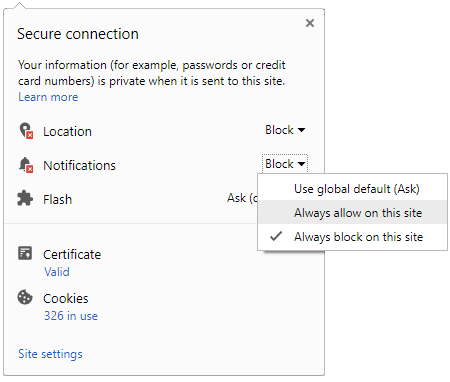
 Click it and Unblock the Notifications
Google Is Linking Your Phone Number to All Your Accounts, Here’s How to Stop It in 2 Minutes

If you use more than one Google account on your Android phone, there is a good chance Google has quietly linked your phone number to all of them. That includes your work account, a second Gmail ID or an account you created specifically to keep separate from your personal number.
Many users only found out after getting an email from Google saying their phone number had been verified. Here is why this is happening and how you can stop it.

Why Google is doing this
It comes from a setting called Phone number verification, which is turned on by default. It lets Google and your mobile carrier regularly re-verify your number, which helps with account recovery, RCS messaging, Quick Share and some emergency features. The catch is that it attaches the same number to every Google account signed in on that phone, whether you wanted that or not.
For most people with one account, this isn't a problem. But if you keep separate accounts for work, side projects or privacy, it undoes that separation. It also means that if someone gets into your phone, all your accounts are tied to the same number.
How to turn off automatic linking
Open the Settings app on your Android phone and tap Google or Google services. Tap All services, then scroll down to the Privacy and security section and tap Phone number verification. Turn off the toggle that says Automatically verify phone number(s). You may need to enter your phone's PIN or password to confirm.
Some users have reported that this setting turns itself back on after a while, so it is worth checking again after a few days or after a system update.
How to remove your number from accounts already linked
Turning off the setting only stops future linking. Any number Google has already added will stay on your accounts until you remove it yourself.
To do that, open your Google Account settings, either from the Google app or by visiting myaccount.google.com, and make sure you are signed in to the account you want to clean up. Go to Personal info, tap Phone under Contact info and remove the number. Repeat this for every account you want to keep separate.
What you might lose
Keep your number linked to your main personal account. That is the one you will need it for when recovering your account, using two-step verification or setting up RCS chat. Removing it from secondary accounts is safe, but make sure each of those accounts still has a backup email or another recovery option so you don't get locked out later.
Google has said the feature exists for "practical reasons" but hasn't said whether it plans to change how it works.
-
 1,29,999
-
 22,999
-
 64,999
-
 99,999
-
 29,999
-
 39,999
-
-
 63,999
-
 1,56,900
-
 96,949

-
 1,39,900
-
 1,29,900
-
 79,900
-
 65,900
-
 12,999
-
96,949
-
 16,499
-
 38,999
-
 30,700
-
 49,999
-
 19,999
-
 17,970
-
 21,999
-
 13,474
-
 18,999
-
 22,999
-
 19,999
-
 17,999
-
 26,999
-
 5,999


 Continue with Google